查看源文件

Azure Storage


Storage Types

image-20241214113847766

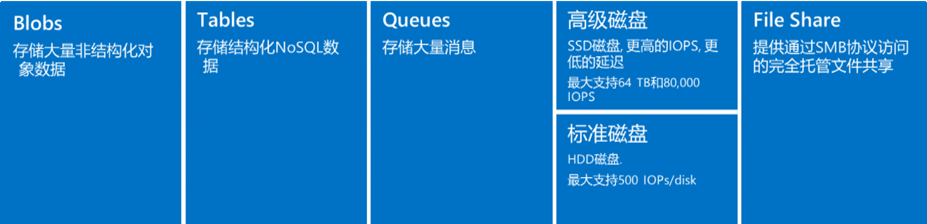
  • Access to each storage type is through a storage account

Storage Redundancy

image-20241214110808699

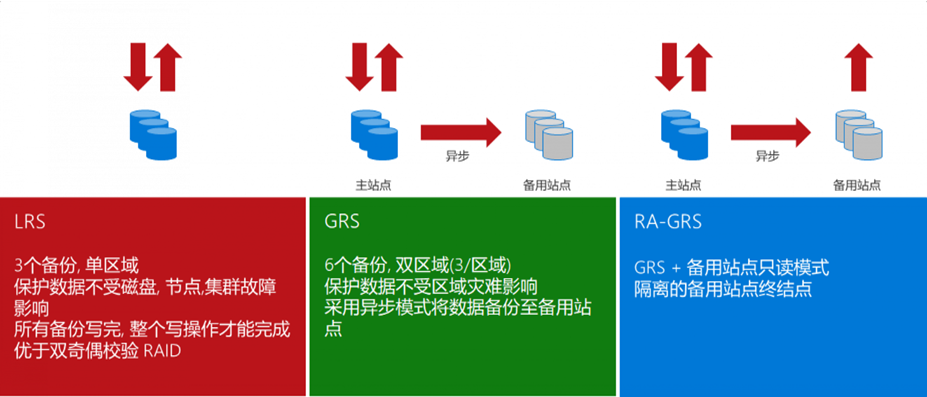
  • LRS: Local redundancy, 3 copies within a single datacenter, read/write balanced across the 3 copies. Datacenter failure poses risk.
  • GRS: Geo-redundant, different regions. Primary region has 3 copies; secondary region gets 3 async copies, but secondary is not readable/writable unless failover is initiated.
  • RA-GRS: Compared to GRS, secondary region’s 3 copies are also readable.
  • ZRS: Data replicated across different Availability Zones within the same region, 3 copies across 3 AZs.
  • GZRS: ZRS + 3 backup copies in another region.

Storage Account Endpoints

A storage account provides a unique namespace. Its endpoint combines the account name with the Azure Storage service domain; append the container and blob path to address an object. Example: https://mystorageaccount.blob.core.chinacloudapi.cn/mycontainer/myblob.


Azure Blob

Binary Large Object - Azure’s object storage solution for the cloud, suitable for storing large amounts of binary objects. Use cases:

  • Serve images and documents directly to browsers for distributed access
  • Video and audio streaming
  • Backup, restore, disaster recovery, archiving
  • Azure managed service analytics

Blob has three types:

  • Block Blob: Stores text and binary data
  • Append Blob: Optimized for append operations, suitable for storing data from VMs
  • Page Blob: Stores large random-access files, suitable for storing VHD as VM disks

Blob Access Tiers

  • Hot tier: Frequently accessed data
  • Cool tier: Infrequently used but immediately accessible data (short-term backup and DR). Minimum 30 days storage.
  • Archive access tier: Offline tier, optimized for rarely accessed data. Must rehydrate to cool/hot tier for read/modify. Minimum 180 days storage, otherwise extra charges.

Azure Managed Disk

Azure managed, used with Azure VMs. Analogous to physical disks in on-premises servers but virtualized. Types: Premium SSD, Standard SSD, Standard HDD.

Disk Types

  • OS disk: Contains the operating system and boot volume.
  • Data disk: Stores application data.
  • Temporary disk:
    • Most VMs include this; it is NOT a managed disk
    • Used for page files (memory swap partition), uses host machine disk
    • On Linux typically /dev/sdb, default mount point /mnt/resource
    • On Windows typically D:\

Temporary Disk Data Loss

During VM failure, temporary storage does NOT migrate. Never store important data on temporary disk.


Authorization

Access Key

  • When creating a storage account, Azure generates two 512-bit storage account access keys
  • These keys authorize access to data via shared key authorization
  • Access Keys are essentially root passwords, providing all access to all services
  • Use either key; typically use the first and reserve the second for key rotation

SAS Token

  • SAS (Shared Access Signature) grants scoped access to storage resources
  • When creating SAS, specify constraints: which storage resources, what permissions, and the validity period
  • SAS is signed using access keys, two methods:
    • Signed with AAD-provided keys = User Delegation SAS
    • Signed with storage account keys = Service SAS / Account SAS

Management Plane and Data Plane


Logging

Convert Storage Logs with PowerShell

$Columns = 
     (   "version-number",
         "request-start-time",
         "operation-type",
         "request-status",
         "http-status-code",
         "end-to-end-latency-in-ms",
         "server-latency-in-ms",
         "authentication-type",
         "requester-account-name",
         "owner-account-name",
         "service-type",
         "request-url",
         "requested-object-key",
         "request-id-header",
         "operation-count",
         "requester-ip-address",
         "request-version-header",
         "request-header-size",
         "request-packet-size",
         "response-header-size",
         "response-packet-size",
         "request-content-length",
         "request-md5",
         "server-md5",
         "etag-identifier",
         "last-modified-time",
         "conditions-used",
         "user-agent-header",
         "referrer-header",
         "client-request-id"
     )
 
$logs = Import-Csv "C:\Users\v-hangx.FAREAST\Desktop\000000.log" -Delimiter ";" -Header $Columns
 
$logs | Out-GridView -Title "Storage Analytic Log Parser"

Performance Analysis

  • Performance metrics:

    • IOPS: Input/Output per second. For OLTP applications (e.g., online retail), high concurrency demands with insert/update-intensive transactions.
    • Throughput: Data volume sent to disk in a given time interval. For data warehouse applications, single requests access large data volumes (scan-intensive).
    • Relationship: ==IOPS * IO Size = Throughput==
  • IOPS analysis tools:

  • Optimization:

    • IO requests are the unit of input/output operations for applications
      • OLTP: large amounts of random IO
      • Data warehouse: large sequential IO
    • Reduce IO size to improve IOPS (e.g., 8KB for OLTP); increase IO size for throughput (e.g., 1024KB for data warehouse)
    • Cache has separate IOPS and throughput tied to VM size; as read time extends, cache warms up. Azure Premium Storage VMs use BlobCache (host RAM + local SSD combination).

Caching

Cache is stored on physical host machine disk, provided by Compute resources, with good performance.

  • ReadOnly:

    • Reduces read latency, achieves higher IOPS and throughput
    • Cached reads happen on local VM and local SSD, much faster than data disk reads (which happen on Blob)
  • ReadWrite:

    • Default for OS disk
    • Uses appropriate methods to write data from cache to permanent disk
  • None:

    • Only data disks support this; OS disks do not
    • Setting OS disk cache to None will internally override to ReadOnly

SQL Server on Premium Storage

  1. Configure ReadOnly cache on premium storage disks hosting data files
    • Fast cache reads shorten SQL Server query time
    • Reading from cache provides more throughput for SQL Server for backup/restore, bulk load, index rebuild
  2. Configure None cache on premium storage disks hosting log files
    • Log files primarily have frequent write operations; ReadOnly cache is not beneficial

Queue Depth

  • Queue depth is closely related to multi-threading. Queue depth indicates the degree of parallelism an application can achieve.
  • High queue depth allows more operations to queue on disk. The disk can plan ahead and process optimally.
  • Too high queue depth can negatively impact application latency.
  • Formula: ==IOPS * Latency = Queue Depth==
  • Striped volumes should maintain enough queue depth so each disk has its own peak queue depth. For example, if queue depth is 2 with 4 striped disks, only 2 disks will be busy. Configure queue depth to keep all disks busy.

AKS Upload Files to Storage

curl Test Pod Connecting to Storage

kubectl run curl-testing --image curl:latest  --image-pull-policy=IfNotPresent --restart=Never --rm -it curl-testing -- curl "https://<sa name>.blob.core.chinacloudapi.cn/<container name>/<file name>?<sas>"
curl: (7) Failed to connect to curl-testing port 80: Connection refused
curl: (6) Could not resolve host: curl
########################################
## Testing Connection Success
########################################

Upload via azcopy

VM Testing

#curl -sSL -O https://packages.microsoft.com/config/ubuntu/22.04/packages-microsoft-prod.deb
#dpkg -i packages-microsoft-prod.deb && rm packages-microsoft-prod.deb
#apt-get update && apt-get install azcopy
wget -O azcopy_v10.tar.gz https://aka.ms/downloadazcopy-v10-linux && tar -xf azcopy_v10.tar.gz --strip-components=1
  • Upload without SAS — fails (needs authentication):
./azcopy copy 'test.log' 'https://<sa name>.blob.core.chinacloudapi.cn/<container name>/test.log'
  • Upload with container-level SAS — success:
./azcopy copy 'test.log' 'https://<sa name>.blob.core.chinacloudapi.cn/<container name>?<sas>'
  • Upload with VM’s system-assigned identity:
    • Grant identity Storage Blob Contributor on the storage account

    • Upload directly without SAS token:

      ./azcopy copy 'test.log' 'https://<sa name>.blob.core.chinacloudapi.cn/<container name>'

AKS Pod Testing

  • Get azcopy in pod — busybox and alpine images cannot run azcopy after download:

    kubectl run apline --image apline:latest  --image-pull-policy=IfNotPresent --restart=Never --rm -it -- sh
  • Try ubuntu, container has root — success:

    kubectl run ubuntu --image ubuntu:22.04  --image-pull-policy=IfNotPresent --restart=Never --rm -it -- /bin/bash
     
    ./azcopy login --identity --identity-client-id <client id>
    #这里用aks的kubelet identity,sa层面赋予Storage Blob Contributor角色
    #测试上传
    echo "tesetingfromakspod" >> test.log
    ./azcopy copy 'test.log' 'https://<sa name>.blob.core.chinacloudapi.cn/<container name>'
  • Full commands to run in pod:

apt-get update && apt-get install -y wget
wget -O azcopy_v10.tar.gz https://aka.ms/downloadazcopy-v10-linux && tar -xf azcopy_v10.tar.gz --strip-components=1
./azcopy login --identity --identity-client-id <client-id> #--aad-endpoint https://login.partner.microsoftonline.cn
./azcopy copy '<file name>' 'https://<sa name>.blob.core.chinacloudapi.cn/<container name>'

Workload Identity with azcopy

Previously used kubelet identity. Now test with workload identity (just mount the service account, no need to specify UAI ID).

azcopy 10.25+ supports login with workload identity:

tee pod-wi-ubuntu.yaml <<'EOF'
---
apiVersion: v1
kind: Pod
metadata:
  name: pod-test-wi
  namespace: <ns name>
  labels:
    azure.workload.identity/use: "true"
spec:
  serviceAccountName: <sa name>
  containers:
    - name: ubuntu
      image: ubuntu:22.04
      command: ["/bin/sh"]
      args: ["-c", "while true; do echo hello; sleep 10;done"]
      env:
      - name: STORAGE_ACCOUNT_NAME
        value: <sa name>
      - name: STORAGE_CONTAINER_NAME
        value: <container name>
      - name: AZCOPY_AUTO_LOGIN_TYPE
        value: WORKLOAD
EOF
 
##job的yaml需要添加的字段##
#1. 加一个label
  labels:
    azure.workload.identity/use: "true"
    
#2. 加环境变量
env:
- name: STORAGE_ACCOUNT_NAME
  value: <sa name>
- name: STORAGE_CONTAINER_NAME
  value: <container name>
- name: AZCOPY_AUTO_LOGIN_TYPE
  value: WORKLOAD
  
#3. job的command改成下面:
apt-get update && apt-get install -y wget
wget -O azcopy_v10.tar.gz https://aka.ms/downloadazcopy-v10-linux && tar -xf azcopy_v10.tar.gz --strip-components=1
./azcopy copy '<file name>' 'https://<sa name>.blob.core.chinacloudapi.cn/<container name>' --put-md5

Blob MD5 for Large Files

Workload Identity with az login

tee pod-sidecar.yaml <<'EOF'
apiVersion: v1
kind: Pod
metadata:
  name: pod-test-wi
  namespace: mapapps
  labels:
    azure.workload.identity/use: "true"
spec:
  serviceAccountName: <sa name>
  containers:
    - name: ubuntu
      image: ubuntu:22.04
      imagePullPolicy: IfNotPresent
      command:
      - /bin/sh
      - -c
      - >
        while true; do echo hello >> /mnt/test.txt; sleep 10; done
      volumeMounts:
      - name: localstorage
        mountPath: /mnt
    - name: sidecar-azlogin
      image: azure-cli:cbl-mariner2.0
      command:
      - /bin/sh
      - -c
      - |
        az login --service-principal -u $AZURE_CLIENT_ID -t $AZURE_TENANT_ID --federated-token $AZURE_FEDERATED_TOKEN_FILE && \
        az storage blob upload --account-name <sa name> --container-name <container name> --name test.txt --file /mnt/test.txt
      volumeMounts:
      - name: localstorage
        mountPath: /mnt
  volumes:
  - name: localstorage
    emptyDir: {}
EOF

Workload Identity Environment Variables

Every pod with WI has these environment variables:

Environment:
      AZURE_CLIENT_ID:             <client id>
      AZURE_TENANT_ID:             <tenant id>
      AZURE_FEDERATED_TOKEN_FILE:  /var/run/secrets/azure/tokens/azure-identity-token
      AZURE_AUTHORITY_HOST:        https://login.chinacloudapi.cn

Login command:

az cloud set --name AzureChinaCloud && az login --service-principal --username "${AZURE_CLIENT_ID}" --tenant "${AZURE_TENANT_ID}" --federated-token "$(cat $AZURE_FEDERATED_TOKEN_FILE)" 

Upload command:

az storage blob upload --account-name <sa name> --container-name <container name> --name test.txt --file /mnt/test.txt --auth-mode login
#azcli pod单独测试
tee pod-azcli.yaml <<'EOF'
apiVersion: v1
kind: Pod
metadata:
  name: pod-test-azcli
  namespace: <ns name>
  labels:
    azure.workload.identity/use: "true"
spec:
  serviceAccountName: <sa name>
  containers:
    - name: sidecar-azlogin
      image: azure-cli:cbl-mariner2.0
      command: ["/bin/sh"]
      args: ["-c", "while true; do echo hello; sleep 10;done"]
EOF

AZ CLI Container Resource Requirements

The MS-provided azcli container will crash when running az commands if CPU/memory is too low. Set request to at least 200m CPU and 500Mi memory.


Upload via PV Mounting Blob

  • Create secret:
kubectl create secret generic <secret name> --from-literal sazurestorageaccountname=<sa name> --from-literal azurestorageaccountkey="<key value>" --type=Opaque
  • Create PV:
tee pv-download.yaml <<'EOF'
apiVersion: v1
kind: PersistentVolume
metadata:
  annotations:
    pv.kubernetes.io/provisioned-by: blob.csi.azure.com
  name: pv-blob-download
spec:
  capacity:
    storage: 10Gi
  accessModes:
    - ReadWriteMany
  persistentVolumeReclaimPolicy: Retain  # If set as "Delete" container would be removed after pvc deletion
  storageClassName: managed-blobfuse-premium-lrs
  mountOptions:
    - -o allow_other
    - --file-cache-timeout-in-seconds=120
  csi:
    driver: blob.csi.azure.com
    # volumeid has to be unique for every identical storage blob container in the cluster
    # character `#`and `/` are reserved for internal use and cannot be used in volumehandle
    volumeHandle: <handle name>
    volumeAttributes:
      containerName: <container name>
    nodeStageSecretRef:
      name: <secret name>
      namespace: default
EOF
  • Create PVC:
tee pvc-download.yaml <<'EOF'
apiVersion: v1
kind: PersistentVolumeClaim
metadata:
  name: pvc-blob-download
spec:
  accessModes:
    - ReadWriteMany
  resources:
    requests:
      storage: 10Gi
  volumeName: pv-blob-download
  storageClassName: managed-blobfuse-premium-lrs
EOF

Workload Identity with PV

  • Test simple pod mount:
tee pod-wi-ubuntu.yaml <<'EOF'
apiVersion: v1
kind: Pod
metadata:
  name: pod-test-wi
  namespace: <ns name>
  labels:
    azure.workload.identity/use: "true"
spec:
  serviceAccountName: <sa name>
  containers:
    - name: ubuntu
      image: ubuntu:22.04
      command: ["/bin/sh"]
      args: ["-c", "while true; do echo hello; sleep 10;done"]
EOF
 
k exec -it pod-test-wi -n <ns name> -- /bin/bash
#查看token
cat /run/secrets/azure/tokens/azure-identity-token
  • Test job mounting blob

PV:

tee pv-upload.yaml <<'EOF'
apiVersion: v1
kind: PersistentVolume
metadata:
  annotations:
    pv.kubernetes.io/provisioned-by: blob.csi.azure.com
  name: pv-blob-upload
  namespace: <ns name>
spec:
  capacity:
    storage: 10Gi
  accessModes:
    - ReadWriteMany
  persistentVolumeReclaimPolicy: Retain  # If set as "Delete" container would be removed after pvc deletion
  storageClassName: managed-blobfuse-premium-lrs
  mountOptions:
    - -o allow_other
    - --file-cache-timeout-in-seconds=120
  csi:
    driver: blob.csi.azure.com
    # volumeid has to be unique for every identical storage blob container in the cluster
    # character `#`and `/` are reserved for internal use and cannot be used in volumehandle
    volumeHandle: <handle name>
    volumeAttributes:
      storageAccount: <sa name>
      containerName: <container name>
      AzureStorageAuthType: MSI
      AzureStorageIdentityClientID: <client id>
      AzureStorageIdentityResourceID: <uai id>
      #MSIEndpoint: 
EOF
PVC:

tee pvc-download.yaml <<'EOF'
apiVersion: v1
kind: PersistentVolumeClaim
metadata:
  name: pvc-blob-upload
  namespace: <ns name>
spec:
  accessModes:
    - ReadWriteMany
  resources:
    requests:
      storage: 10Gi
  volumeName: pv-blob-upload
  storageClassName: managed-blobfuse-premium-lrs
EOF

Dynamic PV provisioning test:

tee pod-wi-ubuntu.yaml <<'EOF'
---
apiVersion: v1
kind: Pod
metadata:
  name: pod-test-wi
  namespace: <ns name>
  labels:
    azure.workload.identity/use: "true"
spec:
  serviceAccountName: <sa name>
  containers:
    - name: ubuntu
      image: ubuntu:22.04
      command: ["/bin/sh"]
      args: ["-c", "while true; do echo hello; sleep 10;done"]
      volumeMounts:
        - name: storage
          mountPath: /mnt/storage
  volumes:
    - name: storage
      persistentVolumeClaim:
        claimName: pvc-blob-upload
 
---
apiVersion: v1
kind: PersistentVolumeClaim
metadata:
  name: pvc-blob-upload
  namespace: <ns name>
spec:
  accessModes:
    - ReadWriteMany
  resources:
    requests:
      storage: 10Gi
  storageClassName: managed-blobfuse-premium-lrs
EOF

Download Files - Get MD5

  • How to download files using container-level SAS token?

    Simply append the filename to the URL. Both sides need to sync the filename.

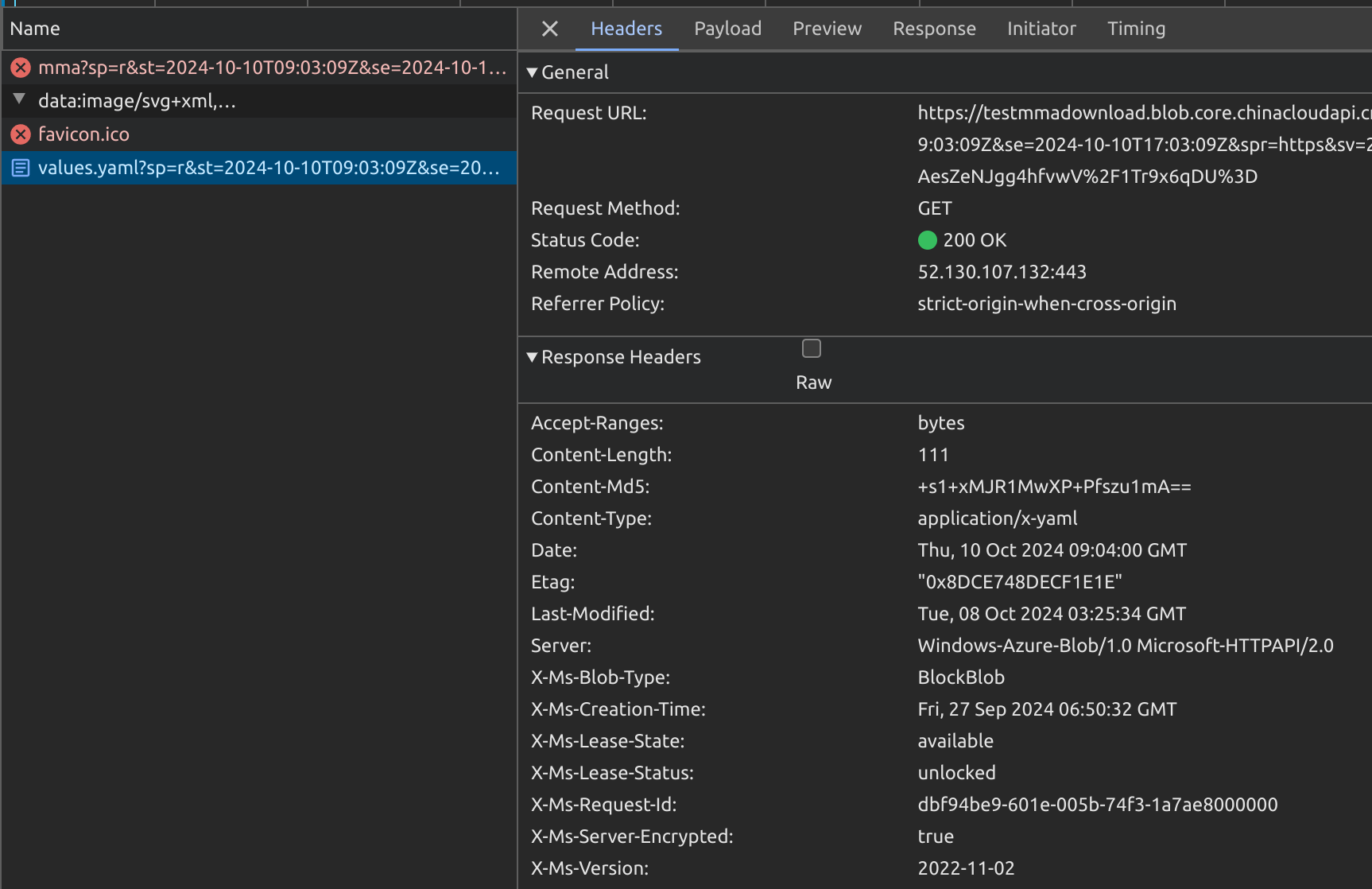
  • How to get blob MD5 value?

    The SAS URL response header contains Content-MD5 field. Use curl -i to view it directly.

    image-20241010170509800

curl -i "https://<sa name>.blob.core.chinacloudapi.cn/<container name>/values.yaml?xxxxxxxxxx"
HTTP/1.1 200 OK
Content-Length: 111
Content-Type: application/x-yaml
Content-MD5: +s1+xxxxxxxxxxxxxxxxxx
Last-Modified: Tue, 08 Oct 2024 03:25:34 GMT
Accept-Ranges: bytes
ETag: "xxx"
Server: Windows-Azure-Blob/1.0 Microsoft-HTTPAPI/2.0
x-ms-request-id: xxxx
x-ms-version: 2022-11-02
x-ms-creation-time: Fri, 27 Sep 2024 06:50:32 GMT
x-ms-lease-status: unlocked
x-ms-lease-state: available
x-ms-blob-type: BlockBlob
x-ms-server-encrypted: true

Automated Blob Download Script Recommendations

Background:

  1. Files are uploaded to Azure Storage Account. Each update creates a new blob file in the same directory for download.
  2. A long-lived directory-level SAS Token is provided. It can list all files in the directory along with creation time, MD5 checksums, etc.

List All Files with SAS Token

  1. SAS URL format:
https://<sa name>.blob.core.chinacloudapi.cn/<container name>?sp=rl&st=2024-10-11T06:04:27Z&se=2024-10-11T14:04:27Z&sip=101.95.105.42&spr=https&sv=2022-11-02&sr=c&sig=xxx

Where:

  • https://<sa name>.blob.core.chinacloudapi.cn/<container> is the storage directory path
  • sp=rl&st=...&sig=xxx is the SAS Token value
  1. Add ==restype=container&comp=list&== between the directory path and SAS Token to list all files and info:

    • Assembled URL: https://<sa name>.blob.core.chinacloudapi.cn/<container name>?restype=container&comp=list&sp=rl&st=2024-10-11T06:04:27Z&se=2024-10-11T14:04:27Z&sip=101.95.105.42&spr=https&sv=2022-11-02&sr=c&sig=xxx

    • Example command:

      curl -X GET "https://<sa name>.blob.core.chinacloudapi.cn/<container name>?restype=container&comp=list&sp=rl&st=2024-10-11T06:04:27Z&se=2024-10-11T14:04:27Z&sip=101.95.105.42&spr=https&sv=2022-11-02&sr=c&sig=xxx"
    • Returns XML format:

      <?xml version="1.0" encoding="utf-8"?>
      <EnumerationResults ServiceEndpoint="https://<sa name>.blob.core.chinacloudapi.cn/" ContainerName="<container name>">
          <Blobs>
              <Blob>
                  <Name>test.log</Name>
                  <Properties>
                      <Creation-Time>Tue, 08 Oct 2024 08:33:51 GMT</Creation-Time>
                      <Last-Modified>Thu, 10 Oct 2024 08:17:07 GMT</Last-Modified>
                      <Etag>xxx</Etag>
                      <Content-Length>19</Content-Length>
                      <Content-Type>text/plain</Content-Type>
                      <Content-Encoding />
                      <Content-Language />
                      <Content-CRC64 />
                      <Content-MD5>xxx</Content-MD5>
                      <Cache-Control />
                      <Content-Disposition />
                      <BlobType>BlockBlob</BlobType>
                      <AccessTier>Hot</AccessTier>
                      <AccessTierInferred>true</AccessTierInferred>
                      <LeaseStatus>unlocked</LeaseStatus>
                      <LeaseState>available</LeaseState>
                      <ServerEncrypted>true</ServerEncrypted>
                  </Properties>
                  <OrMetadata />
              </Blob>
          <NextMarker />
      </EnumerationResults>

Download Files with SAS URL

  1. Append the blob filename (obtained from listing) to the SAS URL container path:
curl "https://<sa name>.blob.core.chinacloudapi.cn/<container name>/test.log?sp=rl&st=2024-10-11T06:04:27Z&se=2024-10-11T14:04:27Z&sip=101.95.105.42&spr=https&sv=2022-11-02&sr=c&sig=xxx"