PerfMon & ProcessMon
Windows performance monitoring and process tracing tools
Used alongside IO Monitor tools for disk benchmarking and troubleshooting on Azure Storage.
PerfMon
Download - https://docs.microsoft.com/en-us/sysinternals/downloads/procmon
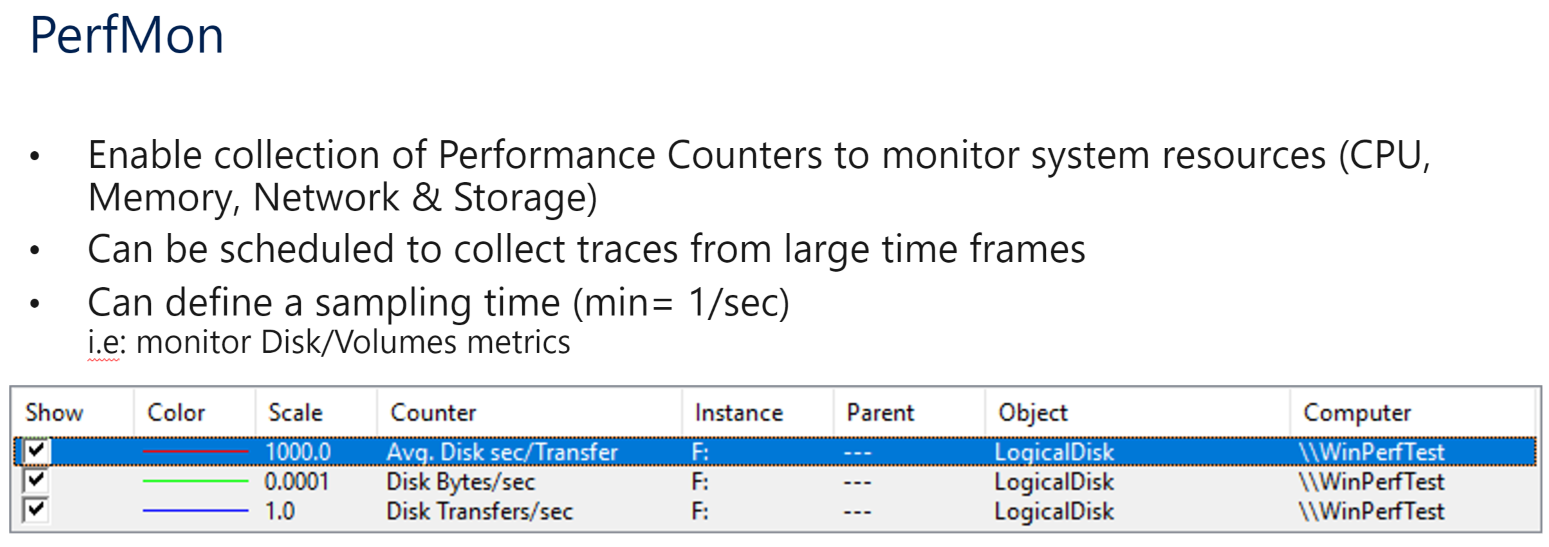
Lab
Disk Benchmarking Lab with PerfMon
The instructor will provide the following instructions:
- Attach 4 Data Disks (Standard_SSD) on a Windows VM (A2_v2 size), 32 GiB each.
- Create a Virtual Disk using Storage Spaces, by combining the 4 disks with Simple (striping) layout.
- Run disk benchmarking (i.e.: DiskSpd) tests with below commands:
diskspd.exe -c1024M -d10 -W5 -o1 -t1 -b8k -r -Sh -L f:\test.dat
diskspd.exe -c1024M -d10 -W5 -o1 -t4 -b8k -r -Sh -L f:\test.dat
评估差异
- Evaluate the differences in terms of IOPS and avg latency
- Repeat the exercise by increasing the
-ovalue from-o1to-o16and-o32: can you see the difference?
ProcessMon
Process Monitor 收集方式如下:
https://docs.microsoft.com/en-us/sysinternals/downloads/procmon
解压到文件夹之后,请参考以下步骤:
- 双击打开 Process Monitor

- 默认自动抓取,您可以通过点击该按钮进行打开抓取和关闭抓取。
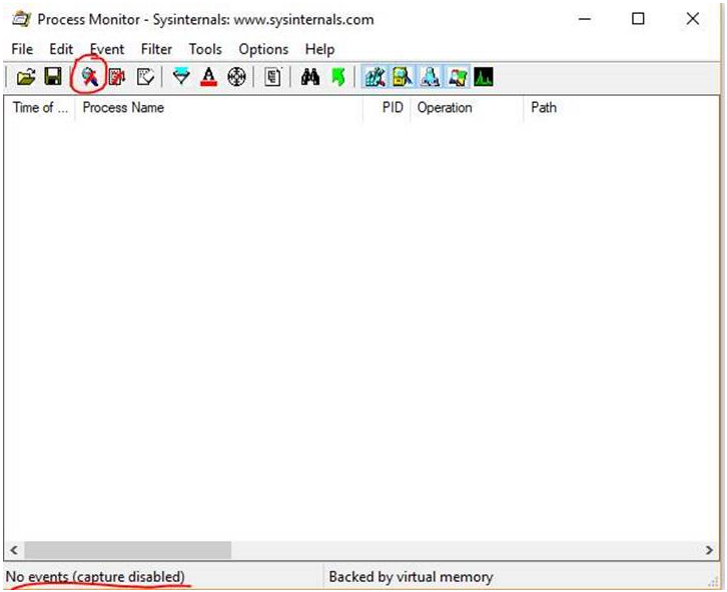
-
开启抓取之后,启动 Edge,访问有问题的地址,复现问题。
-
问题复现结束之后,关闭抓取
-
从 File 中选择保存或者点击 save 进行保存。保存完格式为
*.PML格式。